
Get connected with free wifi in seattle airport. Our 2026 guide helps you find SEA-FREE-WIFI, troubleshoot issues, & explore eSIM alternatives.
You've just landed at Sea-Tac, the cabin door opens, and the phone comes out before the carry-on does. You need a signal for one of the usual reasons: text the person picking you up, recheck a connection, load your hotel details, or get a rideshare before the arrivals curb turns chaotic.
That's where wifi in Seattle Airport matters. Sea-Tac's free network is useful, and in many parts of the airport it's better than travelers expect. But airport Wi-Fi still has the same old weak points: fake-looking network names, captive portal glitches, VPN conflicts, and the basic reality that public internet is never the most reliable or private option.
Getting Online at Seattle-Tacoma International Airport
You land at Sea-Tac, open your phone in the concourse, and need internet before the next decision hits. Maybe it's a rideshare pickup, a gate change, a work message, or a boarding pass that refuses to load. The fastest way online is usually the right one, but airport Wi-Fi only feels fast when it connects cleanly the first time.
Sea-Tac offers free public Wi-Fi across the airport. For basic travel tasks, that is often enough. I use it for messages, checking maps, confirming pickups, and quick searches. I do not rely on it blindly for anything time-sensitive until I know the login page has loaded and traffic is moving.
That's the part that trips people up. The usual problem at Sea-Tac is not finding a Wi-Fi signal. It's getting stuck in the gap between “connected” and “online.”
Practical rule: At Sea-Tac, full bars do not matter if the captive portal never finishes loading.
Use a simple routine. Join the official airport network, wait a few seconds, and test with a browser instead of jumping straight into an app. If the airport page stalls, a quick retry usually beats tapping around and hoping one app breaks through first.
Have a backup before you need one.
Free airport Wi-Fi is fine for low-stakes use, but reliability changes by terminal area, crowding, and time of day. If you need stable service for video calls, uploads, banking, or client work, keep a second option ready. In practice, that usually means mobile data, and an eSIM is the cleaner backup because it avoids captive portals, works the moment your phone has signal, and gives you a more private connection than public Wi-Fi.
Connecting to the Official SEA-FREE-WIFI Network
You land, open your laptop at the gate, and see a strong Wi-Fi signal. Then nothing loads. At Sea-Tac, the usual failure point is not finding the network. It is getting the login page to appear and complete.
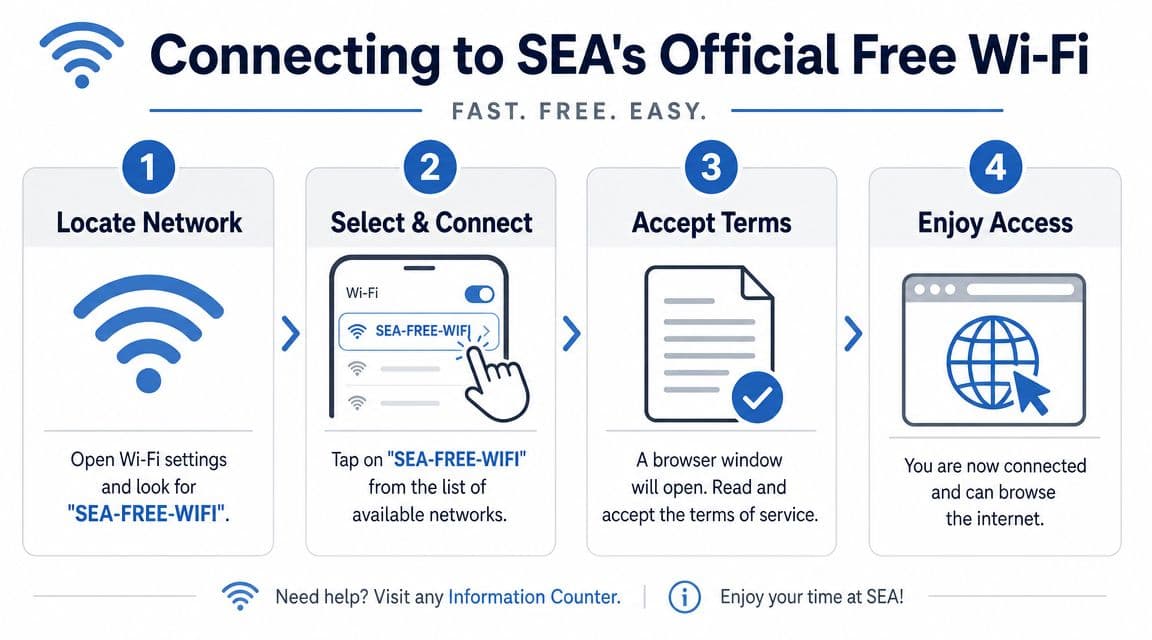
Start by joining the official SSID: SEA-FREE-WIFI. If your device shows similar names, slow down and pick the exact one. Fake or lookalike networks are a real airport problem, and one bad tap can waste more time than the whole connection process.
The quickest method is the one that keeps you out of apps until the network is fully open:
- Turn off airplane mode if your device is still isolating radios.
- Open Wi-Fi settings and select SEA-FREE-WIFI.
- Wait a few seconds after it shows as connected.
- Open a browser tab if the access page does not appear by itself.
- Accept the terms on the captive portal.
- Load a plain website to confirm traffic is passing.
A captive portal is the airport access page that appears before normal browsing works. If it fails to load, the connection often sits in a half-working state where your phone says connected but apps keep spinning.
Here is what consistently helps at Sea-Tac:
- Use a browser first: Safari, Chrome, and other full browsers trigger captive portals more reliably than airline, email, or chat apps.
- Test with a lightweight page: A simple site loads faster and tells you right away whether the session is live. If pages open but feel sluggish, this guide to fixing slow airport Wi-Fi speeds covers the usual causes.
- Forget and rejoin if the portal stalls: This clears a bad first attempt faster than tapping refresh over and over.
And here is what wastes time:
- Opening only apps: Many apps never trigger the sign-in screen.
- Trusting the Wi-Fi icon alone: "Connected" is not the same as usable internet.
- Retrying the same broken session for five minutes: Disconnecting and starting fresh usually works better.
If the captive portal still will not load, use a direct nudge. Open a browser and try a plain HTTP page instead of a saved app shortcut or a search result. If that fails, forget SEA-FREE-WIFI, reconnect, and try again. After two failed attempts, switch to mobile data or an eSIM instead of burning more time. That is the reliable backup when you need a boarding pass, rideshare, bank login, or work file to open right now.
Done right, Sea-Tac Wi-Fi usually takes less than a minute to join. The disciplined approach is simple. Choose the exact SSID, trigger the portal in a browser, verify the connection with a basic page, and move to your backup line if the free network hesitates.
What to Expect from SEA Wi-Fi Speed and Coverage
You land at Sea-Tac, open your laptop near the gate, and the Wi-Fi works well enough for Slack and email. Then you move toward baggage claim or a packed food court and the connection starts dragging. That pattern is normal here. Coverage is broad, but performance is not equally strong in every zone.
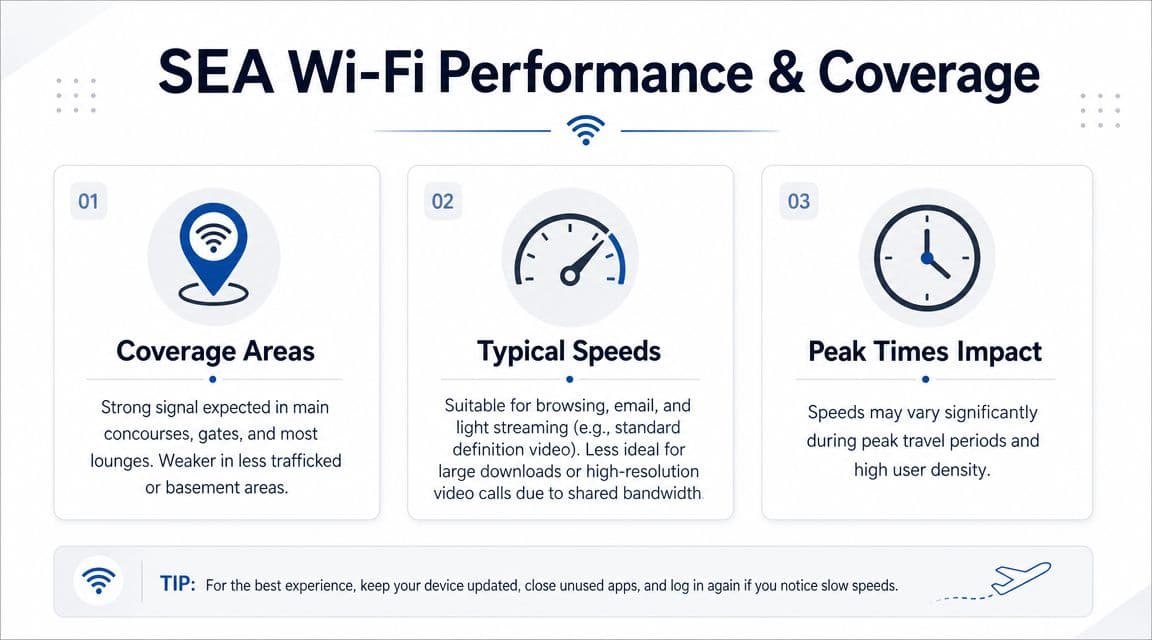
Sea-Tac's free Wi-Fi is usually usable across the main passenger path, including the main terminal, concourses, gates, baggage claim, and the satellite terminals. The practical difference is consistency. Areas with heavier passenger turnover tend to have more variation, especially during the morning departure push and the evening arrival wave.
Where the signal is usually easiest to use
The best results usually come from places where the airport expects travelers to sit and stay connected for a while.
- Main terminal and concourses: Usually the safest bet for email, messaging, web browsing, and pulling up travel documents.
- Gate seating areas: Often good enough for routine work, but speeds can dip fast when a gate area fills up before boarding.
- Baggage claim: Fine for rideshare requests, pickup coordination, and checking directions after landing.
- North and south satellite terminals: Coverage is commonly available, but short interruptions are more likely when your device has been asleep or you have moved between zones.
A small move often helps more than people expect. If the connection feels weak, head toward a gate cluster, larger seating bank, or a busier central area instead of staying in a far corner by a wall outlet.
What speed looks like in real use
Older airport Wi-Fi rankings often still circulate online, including a 2019 Ookla report that measured Sea-Tac among the faster large-airport networks in North America. That report is dated for a 2026 guide, so it is better used as background than as a promise of current performance.
A better way to set expectations is by task and location. In the main terminal or a lightly crowded gate area, SEA-FREE-WIFI is often good enough for web browsing, cloud docs, email, messaging, and boarding pass downloads. Video calls may work, but they are less predictable in packed gate zones. Large file transfers are where the cracks usually show, especially if several nearby flights are boarding and hundreds of devices are fighting for the same airtime.
Airport Wi-Fi speed and airport Wi-Fi reliability are not the same thing. A network can test fast one minute and still feel inconsistent the next because of congestion, roaming between access points, or a captive portal session that never settled correctly.
If you want the short version, use the free Wi-Fi for ordinary travel tasks and light work. For a meeting, sensitive login, large upload, or anything time-critical, have a backup ready. These practical slow airport Wi-Fi troubleshooting steps help you confirm whether the issue is congestion, device behavior, or a bad session.
My rule at Sea-Tac is simple. If the free network is stable, use it. If performance drops in a busy zone or starts cutting in and out, switch to mobile data or an eSIM instead of forcing a public network to do a job it is not handling well. That is usually the faster and more secure option.
Troubleshooting Common Seattle Airport Wi-Fi Problems
You sit down at the gate, connect to SEA-FREE-WIFI, and still cannot load a boarding pass or send a message. That usually comes down to one of three problems at Sea-Tac: the captive portal never opened, the session failed halfway through sign-in, or your device is fighting the network with a VPN, private DNS, or stale Wi-Fi settings.
The fix is usually quick if you stop guessing and work the problem in order.
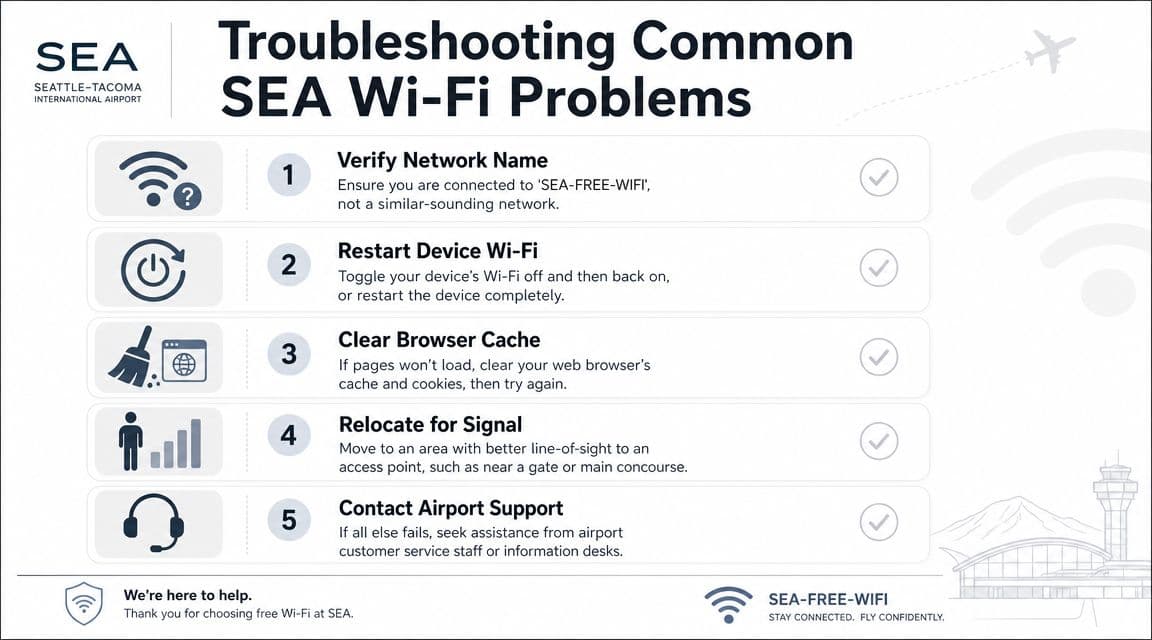
When the login page never appears
This is the failure I see most often in busy terminals. Your device shows a Wi-Fi connection, but the browser never gets the airport sign-in page.
Run this sequence once, in order:
- Forget SEA-FREE-WIFI, then reconnect.
- Turn off VPN, private relay, or private DNS for a minute if you use them.
- Open a browser, not an airline app or email app.
- Try loading a plain website over HTTP or a simple non-cached page to trigger the portal.
- Wait 10 to 15 seconds before trying again.
If that still does nothing, switch Wi-Fi off, count to five, and reconnect. On phones, opening a fresh browser tab often works better than tapping links inside another app.
When you look connected but nothing loads
Full bars do not mean you have internet. At Sea-Tac, this usually means the portal session did not finish cleanly or the network handed your device a bad local session.
Use a short reset:
- Toggle Wi-Fi off and back on
- Reconnect from scratch
- Test in the browser first
- Disable VPN until the session is live
- Try one device before connecting the rest
If your laptop works and your phone does not, the phone is usually the problem. iCloud Private Relay, Android private DNS, saved network settings, and aggressive security apps can all interrupt airport sign-in pages.
When the network name looks close enough
Close enough is how people end up on the wrong hotspot.
Use the official SSID only. If you joined something that looks similar, forget it immediately and reconnect to SEA-FREE-WIFI. A stronger signal from a lookalike network is not a reason to stay on it.
When the connection works, then drops at the gate
This is the annoying one. You get online, answer a few messages, then pages stall again. In my experience, that happens more often near packed boarding areas where devices keep hopping between access points or congestion spikes right before boarding.
The practical move is to retry once, not five times. If the network drops a second time and the task matters, stop burning time and switch to cellular or an eSIM. That is usually the more reliable option for ticket changes, rideshare booking, two-factor codes, work logins, and anything with a deadline.
If you need a step-by-step fallback, use this no connection troubleshooting guide.
My rule at Sea-Tac is simple. Fix the portal once. If the free Wi-Fi still will not hold a stable session, move to mobile data or an eSIM and get on with your trip.
Security Best Practices on Public Airport Networks
Public airport Wi-Fi is convenient, not private. Even when you're on the official Sea-Tac network, you should treat it like a shared public space because that's exactly what it is.
That doesn't mean you need to be paranoid. It means you should use a few habits that reduce risk without slowing you down.
Habits that reduce risk fast
The first habit is verifying the network name before you join. At an airport, a fake hotspot only has to look plausible for a rushed traveler to tap it. Slow down and confirm the SSID.
The second is checking for HTTPS in the sites you open. Modern websites usually encrypt traffic, but you still don't want to casually log into every account you have while sitting on public Wi-Fi.
A practical setup looks like this:
- Use a VPN after login succeeds: Good for sensitive work, but complete the captive portal first if the VPN blocks access.
- Avoid high-risk logins: Banking, sensitive admin panels, and private client systems are better handled on a private mobile connection.
- Turn off auto-join for unknown networks: That stops your phone or laptop from hopping onto random hotspots.
- Keep sharing disabled: AirDrop, file sharing, and open device discovery don't need to stay on in a busy terminal.
Smart habit: Use airport Wi-Fi for convenience. Use a private mobile connection for anything that would hurt if exposed.
Should you avoid wifi in Seattle Airport completely? No. For routine travel tasks, it's fine if you use common sense. The mistake isn't using public Wi-Fi. The mistake is treating it like your home network.
Reliable Internet Alternatives When Wi-Fi Fails
Free airport Wi-Fi is useful, but it's still shared infrastructure. If you need internet the moment you land, want a more private connection, or can't risk a portal failure while a client waits on Slack, you need a backup that doesn't depend on airport systems.
The main alternatives are cellular data from your home carrier, lounge Wi-Fi, or an eSIM-based mobile data plan. Each solves a different problem, and not all of them are equally practical for international travelers.
SEA connectivity options at a glance
| Option | Speed & Reliability | Security | Cost & Access |
|---|---|---|---|
| Free airport Wi-Fi | Good for routine travel tasks when the network behaves. Can be disrupted by portal issues or crowd load. | Public network, so it needs caution. | Free and widely accessible in passenger areas. |
| Home carrier roaming | Often immediate and simple if your plan supports it. | Private mobile connection, usually better than public Wi-Fi. | Can be expensive or unclear, especially across borders. |
| Lounge Wi-Fi | Often calmer and easier to use than the open network. | Better environment, but still shared access. | Limited to travelers with lounge access. |
| eSIM mobile data | Usually the most dependable option for private connectivity. | Better for work, logins, and sensitive tasks. | Requires a compatible device and setup before or during travel. |
An eSIM is usually the strongest backup because it avoids the airport portal entirely. No captive portal, no SSID hunting, no guessing whether your browser or VPN is the problem. For travelers comparing the trade-offs, this breakdown of eSIM vs physical SIM vs Wi-Fi is a useful way to think about reliability versus convenience.
What works best when you can't afford downtime
If you only need to text someone, load a boarding pass, or summon a ride, the free network is usually worth trying first. If you need to join a work call from the terminal, send media files, or access private company systems, a private mobile connection is the better choice.
Lounge Wi-Fi helps if you already have access, but it's not a universal solution. It depends on your airline, status, membership, and whether a lounge is even close to where you are.
For most frequent travelers, the hierarchy is simple:
- Use free Wi-Fi for convenience
- Use private mobile data for reliability
- Use eSIM when you want both speed and less friction
That's especially true after landing. The less time you spend debugging internet in a crowded terminal, the better your arrival goes.
RoamFly gives travelers a cleaner backup plan than public airport Wi-Fi. If you want internet ready before baggage claim, RoamFly offers eSIM data plans for 200+ countries, setup by QR code or iOS install, flexible local and regional options, and a simple way to stay on a private mobile connection instead of depending on captive portals and crowded terminal networks.
*Produced via the Outrank app*