Wifi in san francisco airport - Get Wi-Fi at San Francisco Airport (SFO). Find the official network, follow easy steps to connect, and troubleshoot common
You land at SFO, switch off airplane mode, and immediately need data. Maybe it's a rideshare pickup, a Slack message from a client, a hotel check-in email, or a deck you meant to download before takeoff and didn't. That's the moment when airport internet stops being a convenience and becomes part of your travel plan.
The good news is that wifi in San Francisco Airport has a real reputation behind it. In Q1 2024, SFO led the world's busiest airports for internet connectivity with a median Wi-Fi download speed of 173.55 Mbps, ahead of major hubs including JFK and DFW, according to Broadband Breakfast's summary of Ookla airport data. The less glamorous part is that a fast airport on paper can still be annoying in practice. Captive portals fail, crowded gates drag performance down, and session-based access can interrupt work at exactly the wrong time.
Arriving at SFO Your First Connectivity Challenge
The first connectivity test at SFO usually starts before you even stand up from your seat. You want maps, messages, and prices now. If you're connecting onward, you may also need to rebook, pull a boarding pass, or join a call while walking the terminal.
SFO has earned its reputation. The airport's top ranking in Q1 2024 made it easy for people to assume the experience would be effortless from curb to gate. It often is. But airport Wi-Fi is still shared infrastructure in a crowded, constantly shifting environment, and your real experience depends on where you are, how many people are around you, and whether the login flow behaves on your device.
Practical rule: Treat airport Wi-Fi speed rankings as a positive signal, not a guarantee.
That mindset matters because travelers make two common mistakes. First, they assume any network with “SFO” in the name is fine. Second, they assume one successful connection means they're set for the rest of the layover. Neither is safe.
A better approach is simple:
- Connect to the official SSID first.
- Complete the portal fully before opening work apps.
- Test whether the connection is stable enough for what you need.
- If it isn't, switch quickly to cellular or an eSIM instead of wrestling with it for twenty minutes.
If all you need is light browsing, SFO's free network is often enough. If you're trying to upload files, join a meeting, or handle anything time-sensitive, you need a backup plan before the network gives you a reason to make one.
How to Connect to Free SFO Airport Wi-Fi
SFO's free airport network is officially branded #SFO FREE WIFI and is available across all terminals, according to SFO's Wi‑Fi terms and conditions. That same page also notes that the system tracks each device's MAC address for session management and security. In plain English, a MAC address is just your device's hardware identifier on a network. Airports use it to recognize your device during a session and manage access.
Start with the correct network
This is the first filter. Don't connect to a lookalike network. Use the exact SSID: #SFO FREE WIFI.
Once you select it, your device should send you to a captive portal. That's the browser-based page where you accept the terms before internet access opens up. Most connection failures happen here, not at the Wi-Fi radio level.
What to do on iPhone Android and laptop
The workflow is basically the same on every device, but a few details matter.
On iPhone or iPad
- Open Settings and turn Wi-Fi on.
- Tap #SFO FREE WIFI.
- Wait for the sign-in page to appear.
- If it doesn't, open Safari and try loading a regular page.
- Accept the terms, then test the connection in the browser before opening work apps.
On Android
- Open Settings and choose Network & Internet or your device's Wi-Fi menu.
- Select #SFO FREE WIFI.
- Watch for a “Sign in to network” prompt.
- If nothing appears, launch Chrome manually and load a page to trigger the portal.
- Accept the terms and confirm you can browse normally.
On a laptop
- Join #SFO FREE WIFI from the Wi-Fi menu.
- A portal window may pop up on its own.
- If it doesn't, open your browser yourself and try visiting a non-sensitive webpage.
- Accept the terms before opening VPN software, cloud drives, or email clients.
If the portal doesn't load, don't assume the network is down. In most cases, the sign-in page just hasn't been triggered correctly.
A few practical habits help:
- Use a browser first: Email apps and chat apps often won't trigger the portal.
- Wait until access is confirmed: Don't launch six apps at once while the captive portal is still pending.
- Be realistic about privacy: Since the airport logs device identifiers, public Wi-Fi isn't the place to act like you're on a private office network.
For casual use, this process is straightforward. For work use, the connection step is only half the battle. The next problem is what happens when the login page stalls, the network drops, or the session doesn't last as long as you expected.
Solving Common SFO Wi-Fi Login Issues
A lot of frustration around wifi in San Francisco Airport comes from one mismatch: the network can be fast, but the onboarding experience can still be finicky. Free airport Wi-Fi doesn't fail in dramatic ways. It fails in small, annoying ones. The browser never redirects. The device says you're connected, but nothing loads. A call starts fine, then drops when the session resets.
When the portal won't appear
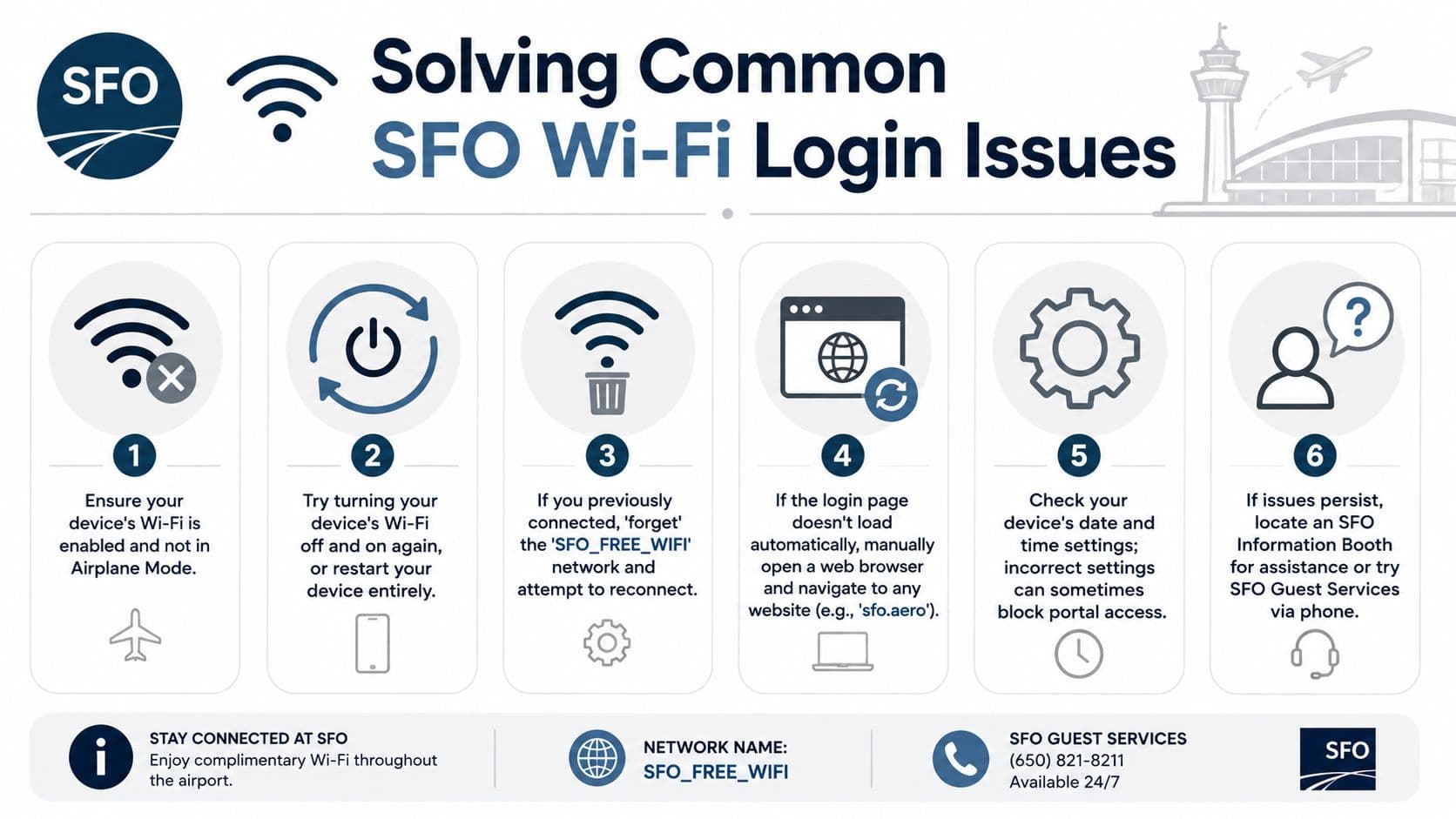
Start with the boring fixes first because they solve most airport Wi-Fi problems.
- Open a browser manually: Don't wait for the pop-up forever.
- Confirm the exact SSID: Recheck that you joined #SFO FREE WIFI and not a similar name.
- Disable VPN temporarily: VPN apps often interfere with captive portals.
- Forget and reconnect: Delete the network from saved Wi-Fi lists, then join again.
- Move a bit: A different seating area can mean a cleaner signal and a more responsive login flow.
If you've gone through that list and still can't get online, it's worth checking a dedicated no connection troubleshooting guide to work through device-side issues methodically.
Don't burn too much time trying to force a bad public Wi-Fi session to work. If the network is blocking your task, the smart move is to switch connections.
When free access isn't uninterrupted
Official SFO pages confirm the free service, but public traveler reports suggest it may be session-based, with some users saying renewal is needed after about 30 minutes, as noted on SFO's passenger Wi‑Fi page. That matters if you're on a call, uploading media, or working through a secure browser session.
The practical issue isn't only time. It's interruption. A session reset can force a reauthentication at the exact moment you're trying to submit a document or reconnect to a work tool.
Here's the pattern I'd watch for:
| Situation | What usually works | What usually doesn't |
|---|---|---|
| Portal never appears | Open browser manually, reconnect, pause VPN | Tapping apps and waiting |
| Connected but no internet | Forget network, retry, move seats | Rebooting only the app you're using |
| Network drops mid-task | Rejoin quickly or move to cellular | Assuming it will self-correct |
| Slow performance at gate | Walk to a quieter area | Testing once and accepting the result |
One more thing trips people up. Devices often cling to a weak access point instead of switching cleanly. If a gate area is packed, your phone or laptop may stay attached to a poor signal longer than you'd expect. That's why moving even a short distance can help more than refreshing the browser ten times.
Best Practices for Fast and Secure Airport Wi-Fi
Airport Wi-Fi works best when you treat it like a shared resource, not a private office network. Even at a high-performing airport, your experience changes with crowd density, seating location, and what you're trying to do. According to Ookla's Q1 2024 airport Wi‑Fi analysis, airport Wi-Fi performance can vary substantially because of terminal density and RF congestion, and real-world speeds can drop in crowded gate clusters. That's why one speed result doesn't represent the whole airport.
How to get better real world performance
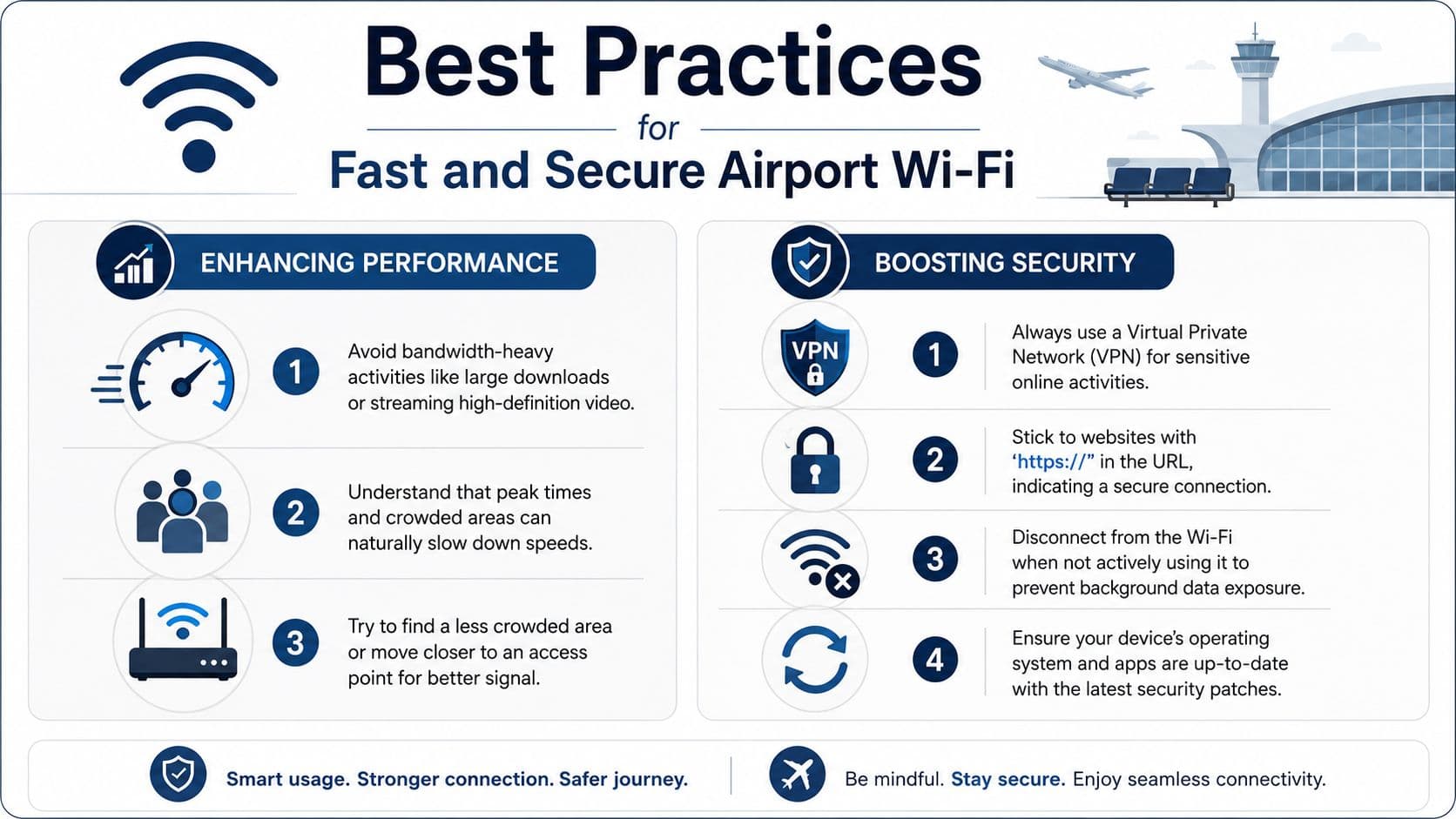
If you only need to message people and check email, almost any stable connection will do. High-bandwidth tasks are different. Video calls, cloud sync, and large uploads expose every weak point in a public network.
A few habits help immediately:
- Test from more than one location: Gates, food courts, and passenger waiting zones can behave differently.
- Avoid the busiest cluster: If a gate is packed, the Wi-Fi there may be the worst place to work.
- Finish heavy tasks in one go: Repeated reconnects are where public networks waste your time.
If you travel often, this is also where having a prepared data option starts to make more sense than chasing the strongest public signal. For example, a product like Brazil eSIM, Unlimited / 1 day shows the type of setup many frequent travelers keep on hand for country-specific coverage when they don't want to rely on airport Wi-Fi after landing.
How to treat public Wi-Fi like public space
Public Wi-Fi is convenient, but it's still public. That means your baseline should be caution.
- Use a VPN for sensitive work: Banking, contracts, client systems, and internal dashboards shouldn't go over open airport Wi-Fi without extra protection.
- Stick to HTTPS sites: Your browser should show a secure connection before you sign in anywhere important.
- Disconnect when you're done: Don't leave the device attached to public Wi-Fi for no reason.
- Update your devices: Current software closes off a lot of avoidable problems.
Public Wi-Fi is fine for convenience. It's not where you want to improvise your security habits.
The simplest rule is this: if losing the connection would be inconvenient, airport Wi-Fi is acceptable. If losing the connection would cost you time, money, or credibility, use a more controlled connection.
Alternatives to SFO Wi-Fi for Reliable Internet
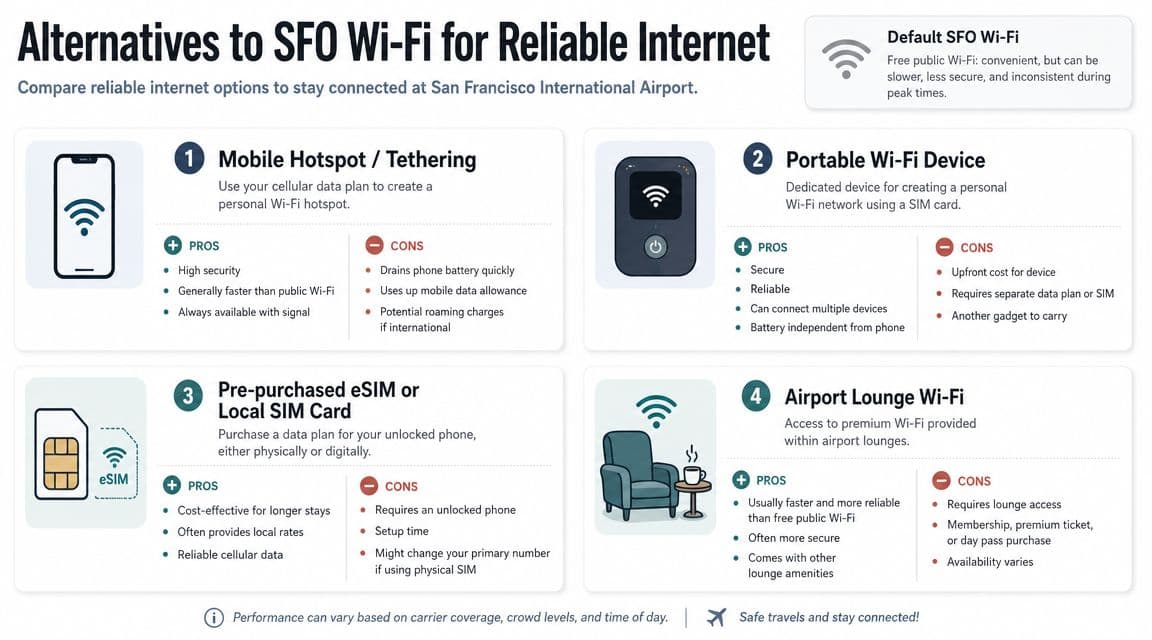
When SFO Wi-Fi works, it's useful. When it doesn't, the problem isn't usually speed alone. It's friction. You waste time on portal retries, network switching, and reconnects when you should be moving.
What works when you can't risk downtime
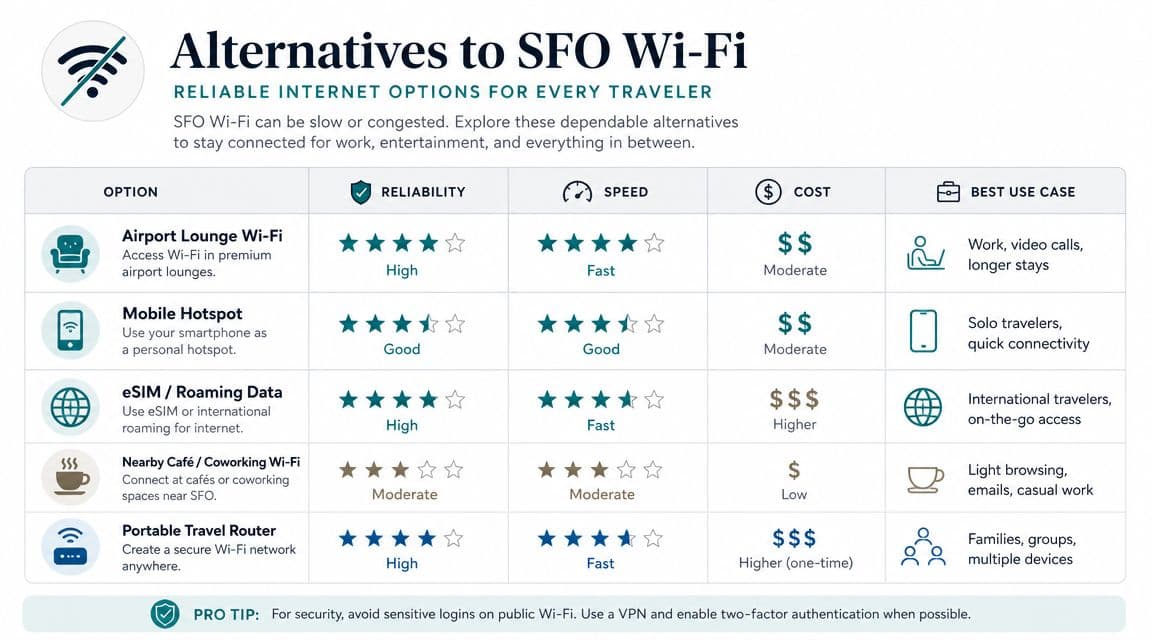
Different travelers need different fallbacks.
Phone hotspot works well if your mobile plan is active and you're not worried about battery drain. It's a solid short-session fix for a laptop upload or a quick meeting.
Portable Wi-Fi devices make sense for people carrying multiple devices every trip. They're one more thing to manage, but they separate your work connection from airport infrastructure.
Lounge Wi-Fi can be better than public terminal Wi-Fi because fewer people are using it and the environment is calmer. It still depends on lounge quality and access.
Here's the short comparison:
| Option | Best for | Main drawback |
|---|---|---|
| Phone hotspot | Quick backup on arrival | Battery and mobile plan limits |
| Portable Wi-Fi device | Multi-device travelers | Extra hardware to carry |
| Lounge Wi-Fi | Quieter work sessions | Access isn't universal |
| eSIM data | Fast switch away from public Wi-Fi | Requires an unlocked compatible phone |
Where an eSIM fits
An eSIM is the cleanest option when your biggest problem is interruption. No captive portal. No guessing whether the login page will appear. No dependence on a crowded terminal network when you need to send something now.
For travelers comparing setup methods, this overview of eSIM vs physical SIM vs WiFi is a useful frame for deciding what belongs in your travel kit. If you want a direct airport backup, RoamFly provides eSIM data plans that can be installed before the trip, so you can switch to cellular data without hunting for a kiosk or swapping a physical SIM after landing.
That matters most for three groups:
- Business travelers who can't miss a call because the portal reset.
- Remote workers who need stable access for cloud tools and sign-ins.
- Creators and consultants who'd rather upload over private data than gamble on public Wi-Fi behavior.
If your task is casual, use the airport Wi-Fi. If the task has consequences, use something you control.
Your SFO Connectivity Plan
Use SFO's free Wi-Fi first if you need a quick connection for messages, maps, or light browsing. Join #SFO FREE WIFI, complete the portal, and test the connection before you open anything important. If the login flow stalls, the signal is weak, or you're doing sensitive work, switch sooner rather than later.
For travelers who need a more dependable backup, it makes sense to set up a United States eSIM option before the trip. That gives you a clean fallback when airport Wi-Fi becomes a delay instead of a convenience.
RoamFly helps travelers get online with eSIM data plans that can be installed before arrival, so you're not relying only on public airport networks when work or timing matters. If you want a backup for your next trip, take a look at RoamFly.
*Composed with the Outrank tool*